Admin User Guide
Storage Request Allocation Approvals, Edit and Decline
Once a resource request is submitted by a user, it needs to be approved by Approver or Service Administrator.
Select the “Resource Approver” from the Select view dropdown located in the left top corner.
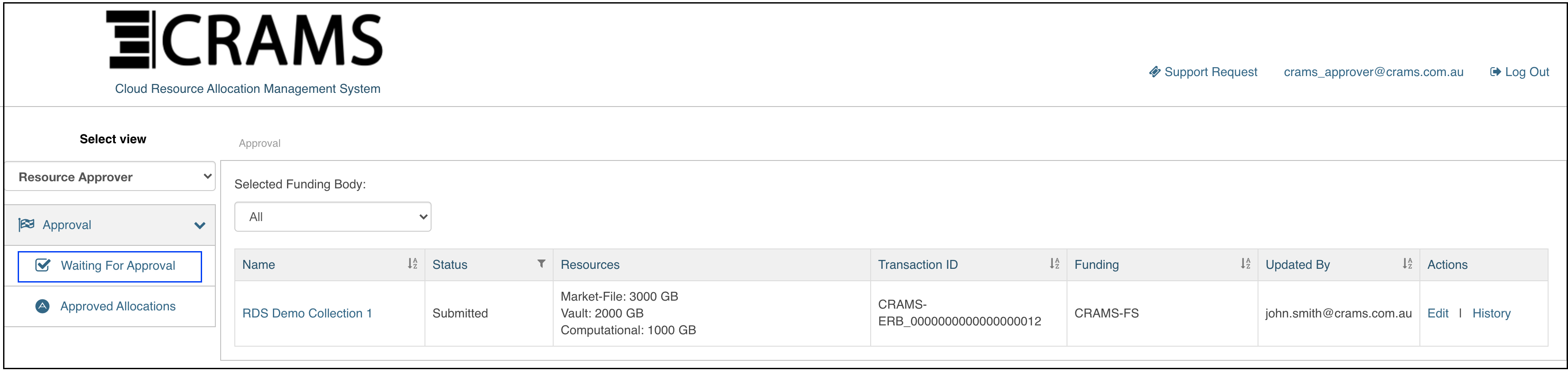
“Waiting For Approval” option is selected by default from the Approval menu and will display the Allocation Requests with pending approval.
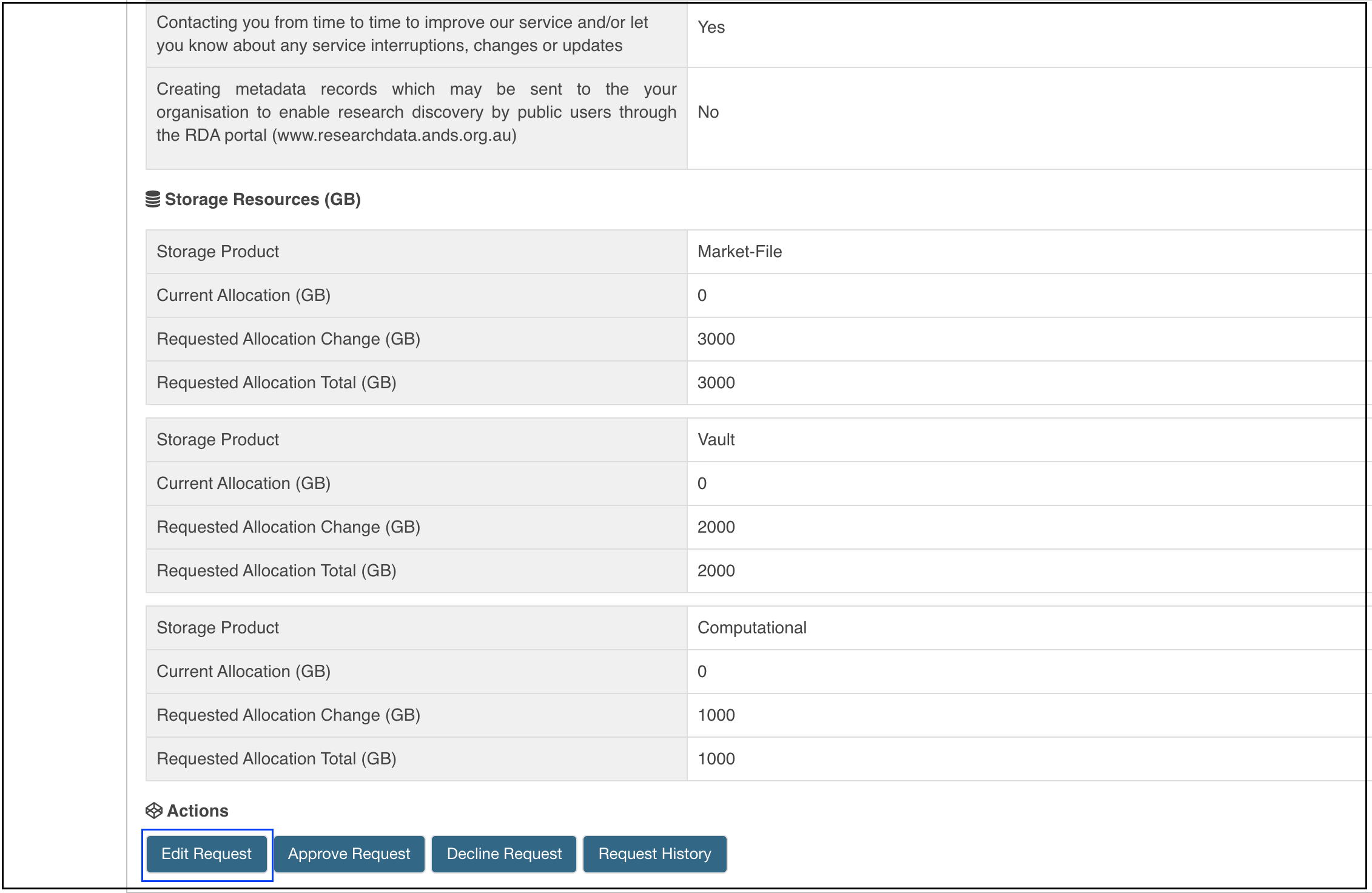
Click on the Project name and review the information provided and the storage quota requested.
Edit a Storage Request
Approver can edit a submitted request by clicking on the “Edit” button. This will open the Request submission form where the required amendments can be done and resubmitted.
Approve a Storage Request
Approver can amend the storage quota that can be approved by changing the value in the text box “Approved Allocation Change”
The comment box can be used to provide some comments regarding allocation which could be useful for the provisioner. The comments are visible for the roles of Approver, Provisioner and Service Administrator.
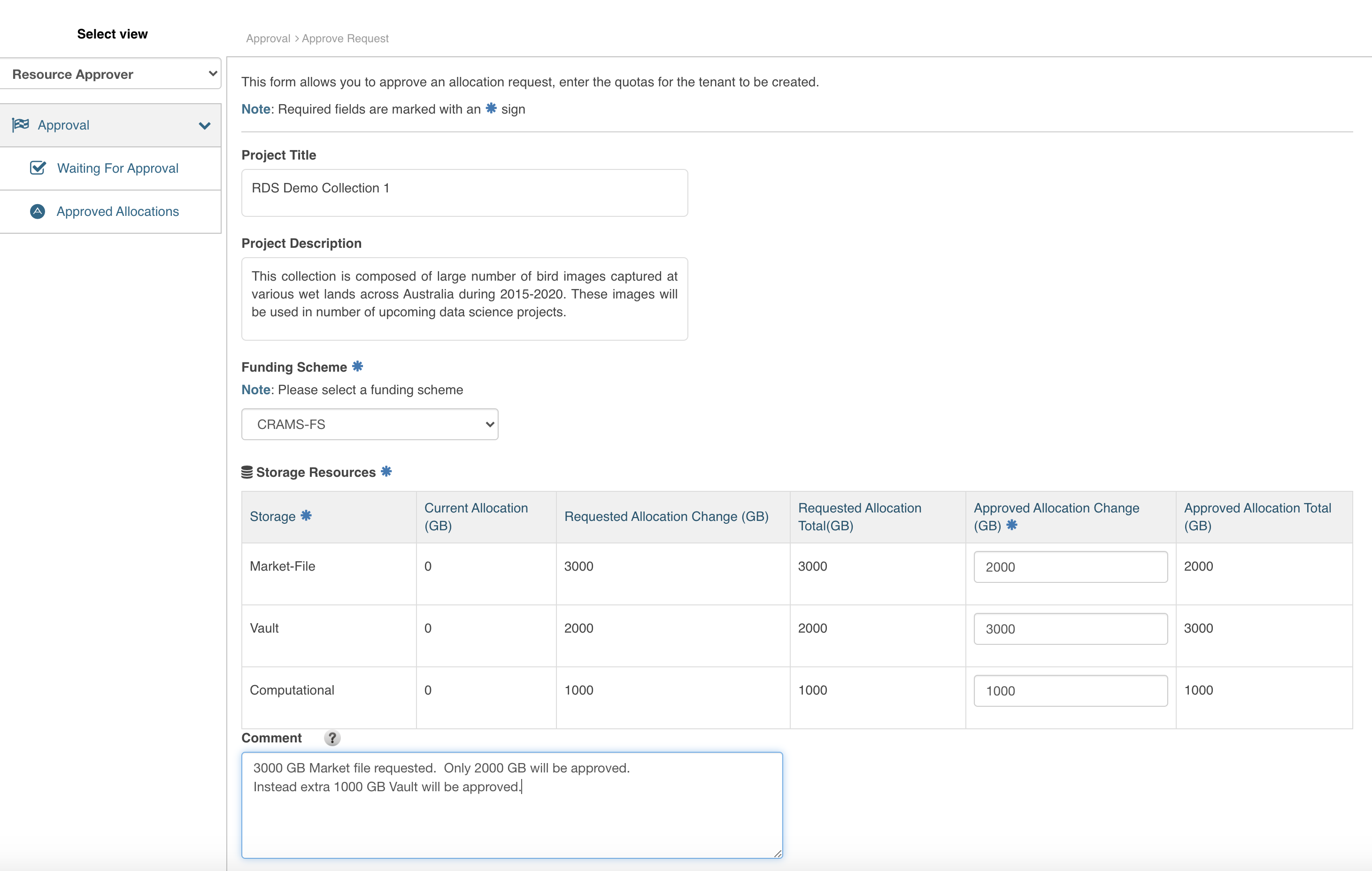
By clicking the “Approve” button the storage allocation request is approved and it can’t be reversed there after.
Decline a Storage Request
An Allocation request can be declined by clicking the “Decline Request” button if the allocation request does not contain sufficient information or for any other reason. It’s required to provide a reason if an allocation request to be declined.
Provision of storage allocation request
The provisioning of storage product/s requested through a particular allocation/project is required to be handled at the storage infrastructure level. Each of the storage provisioned at infrastructure needs to be identified using a “Provision Id” recorded at the back end storage infrastructure management system. Once the storage is provisioned at infrastructure level, this provision id needs to be recorded in the CRAMS using the “Provisioning Request” form.
Select the “Resource Provisioner” from the Select view dropdown located in the left top corner.
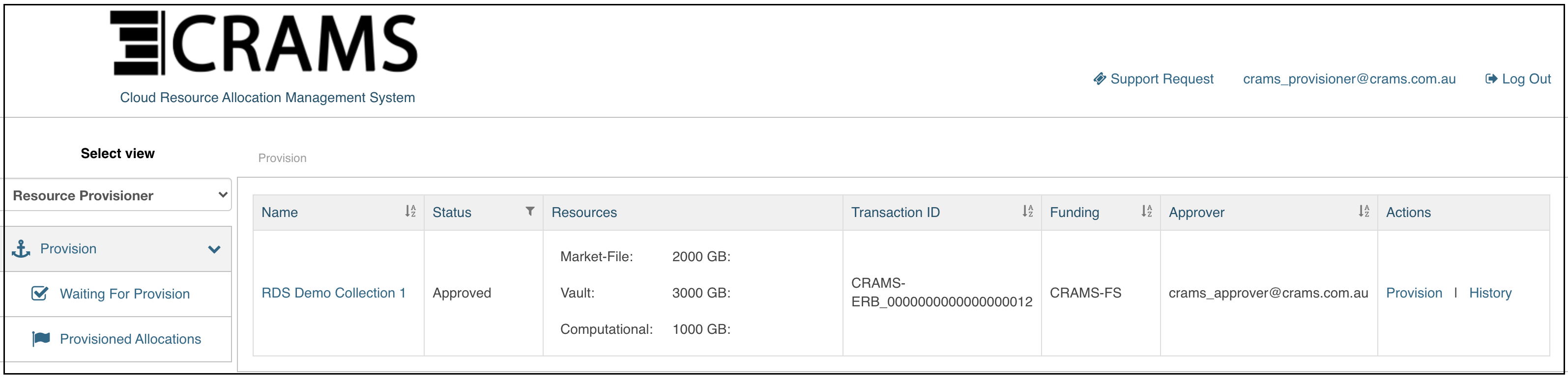
“Waiting For Provision” option is selected by default, from the Provision menu and will display the Allocation Requests waiting for provision.
Click on the Project name to review the project details if required.
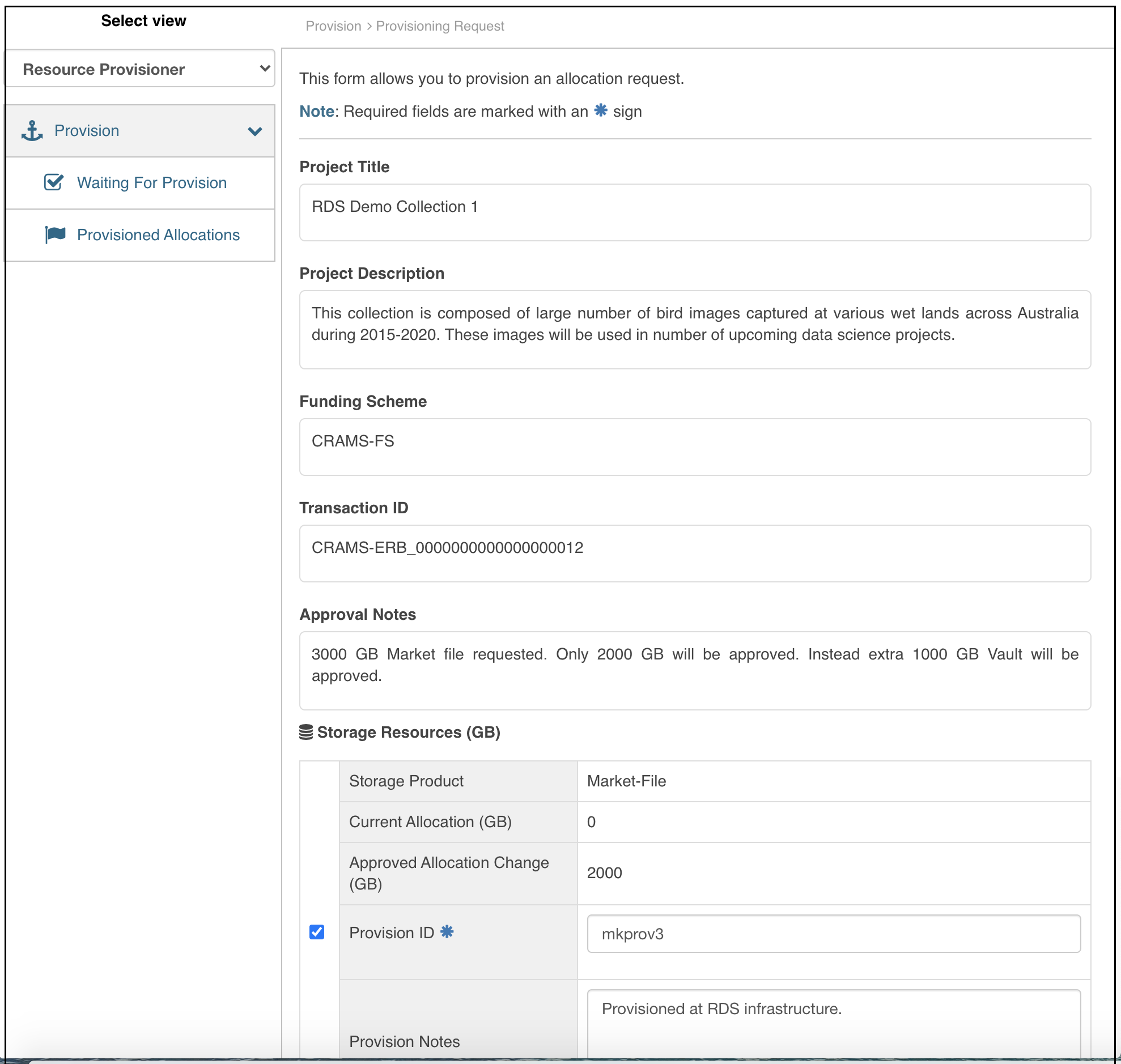
Click on the action button “Provision” to open the form “Provision Request”
Provision a project in full
A project may include multiple storage products and if all of them have provisioned at infrastructure, then all of them can be recorded as provisioned in CRAMS.
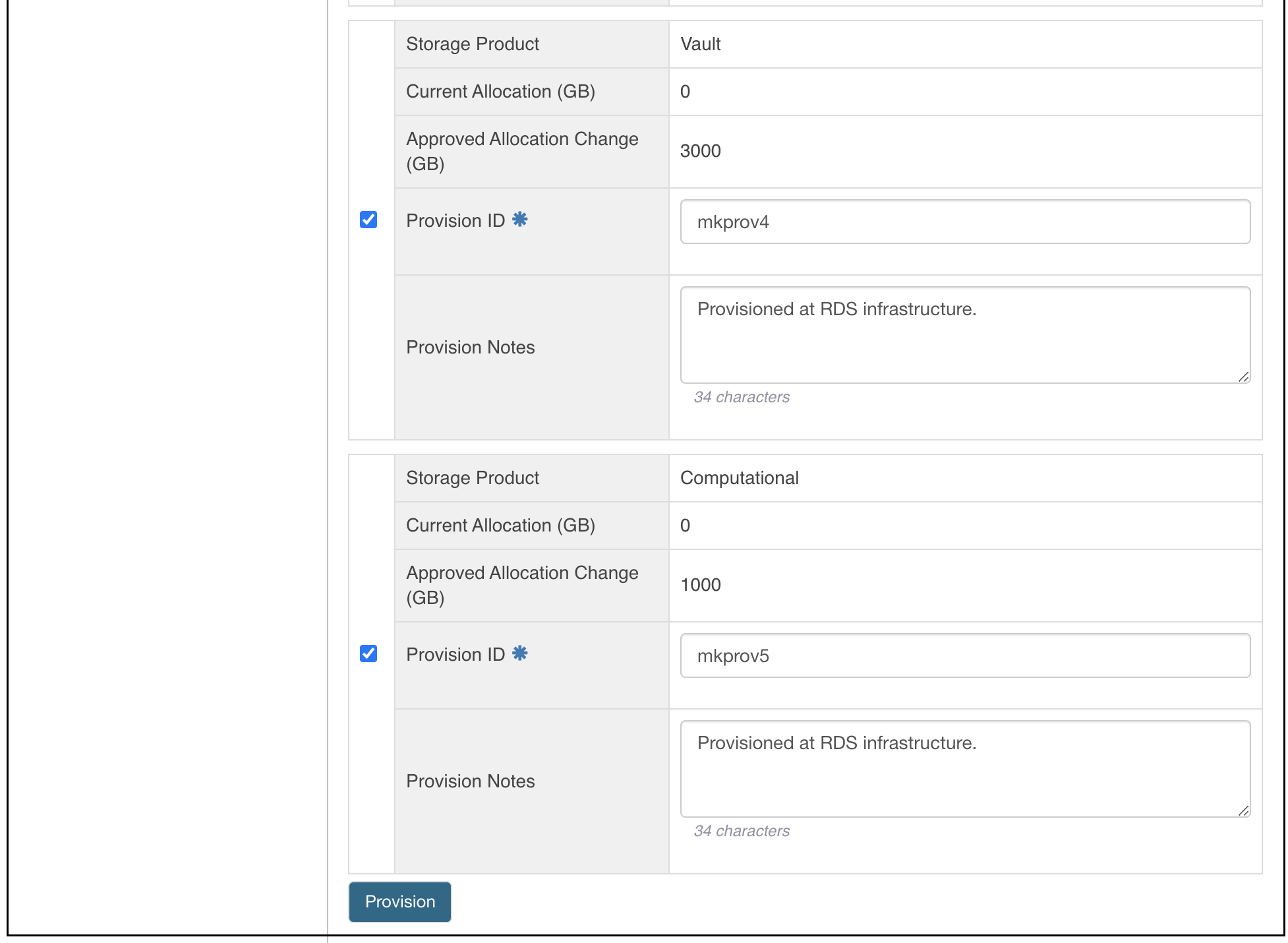
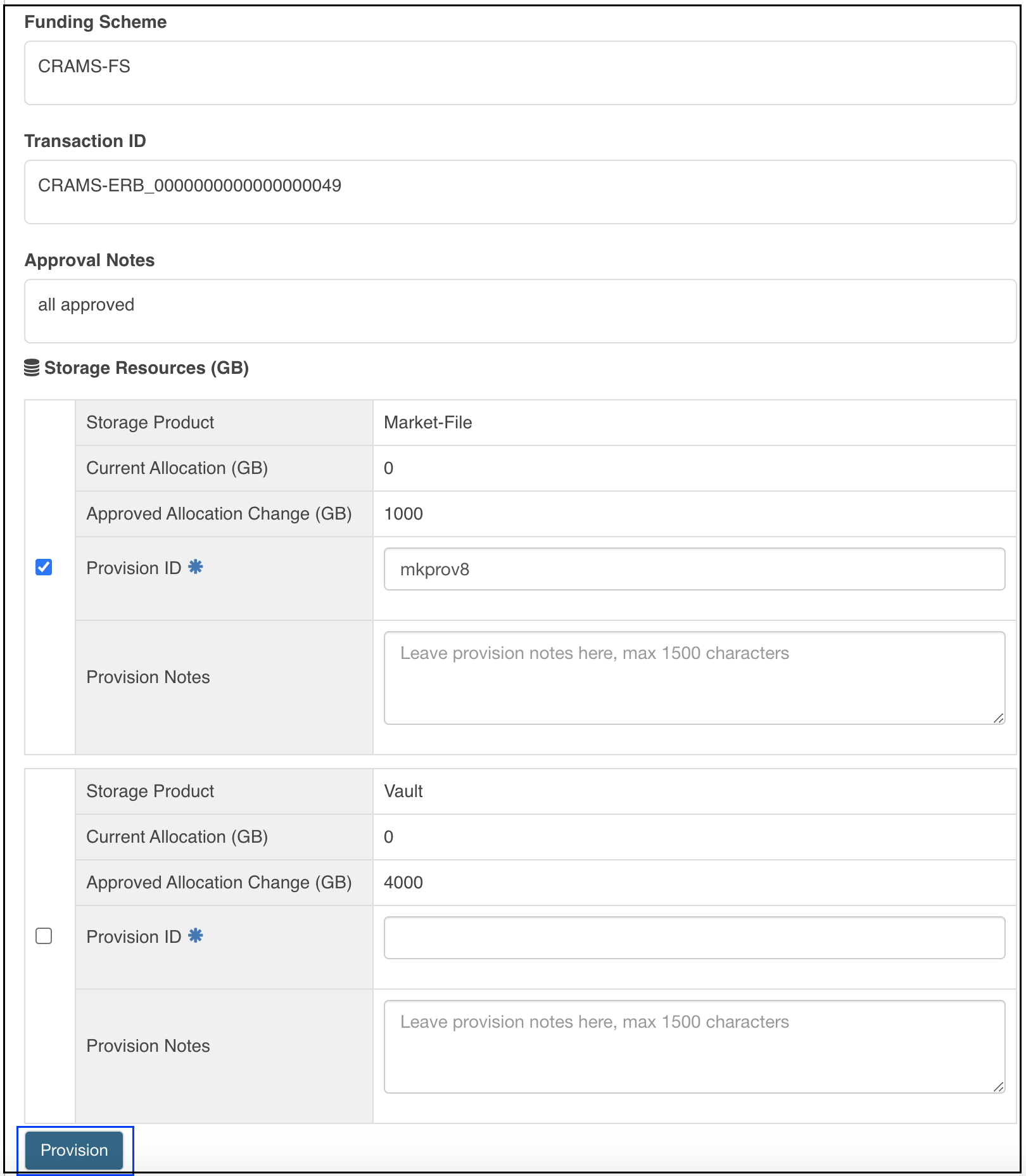
To so, Select each of the storage products by clicking the check box at left, enter provision ids for each of them, provide provision notes ( optional) and click the provision button.
Partial Provision
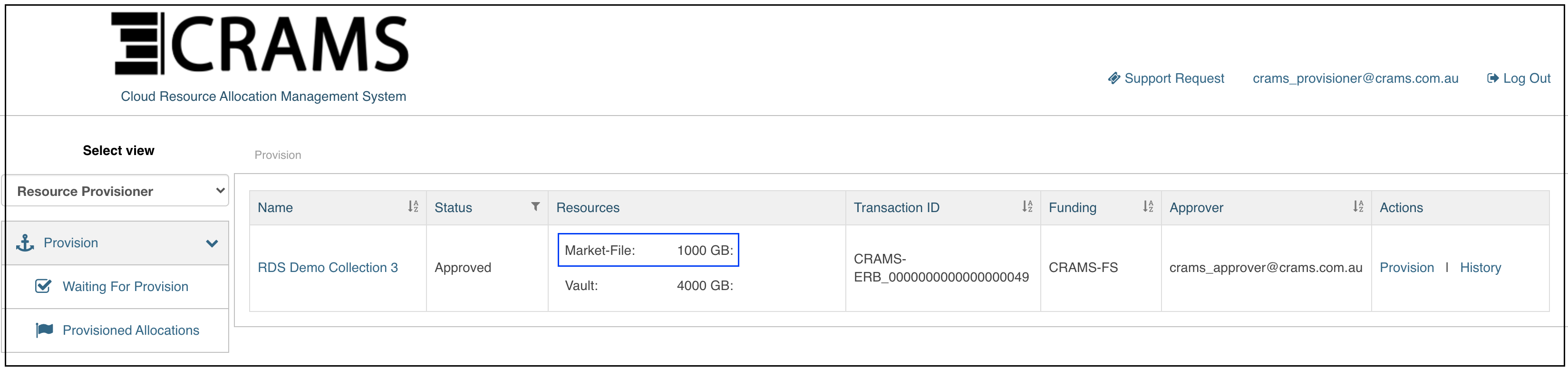
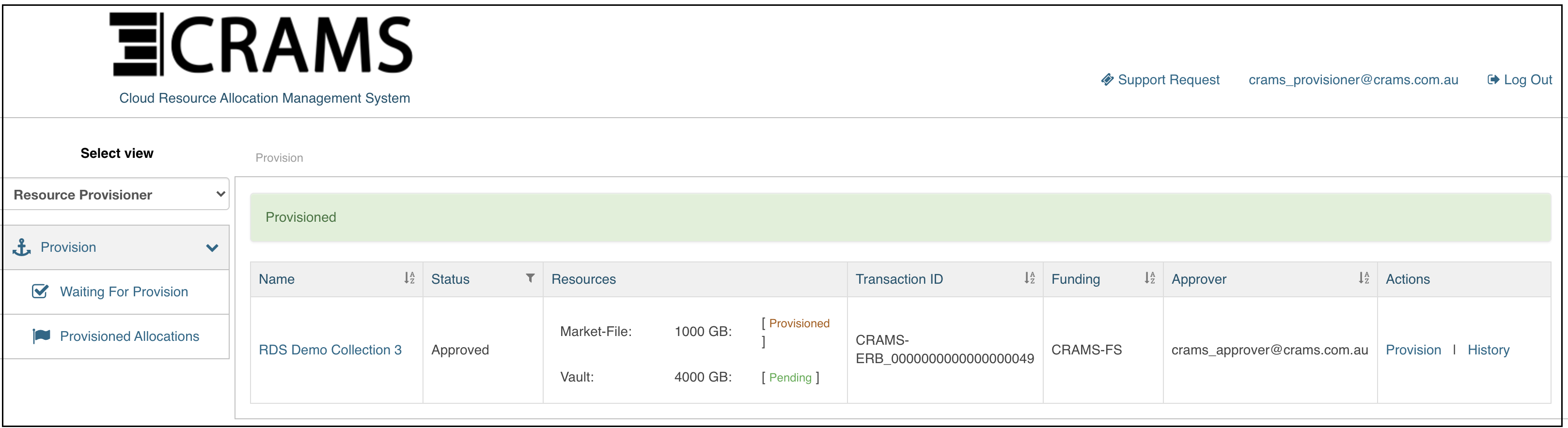
There can be situations where not all the approved storage products are able to be provisioned due to storage of a particular storage product or due to some other reason.
Partial provision feature is used to provision some selected storage products only from the approved ones.
To so,
Only select the storage product/s that have been provisioned at infrastructure, enter provision ids for each of them, provide provision notes ( optional) and click the provision button.
Service Administrator Capabilities
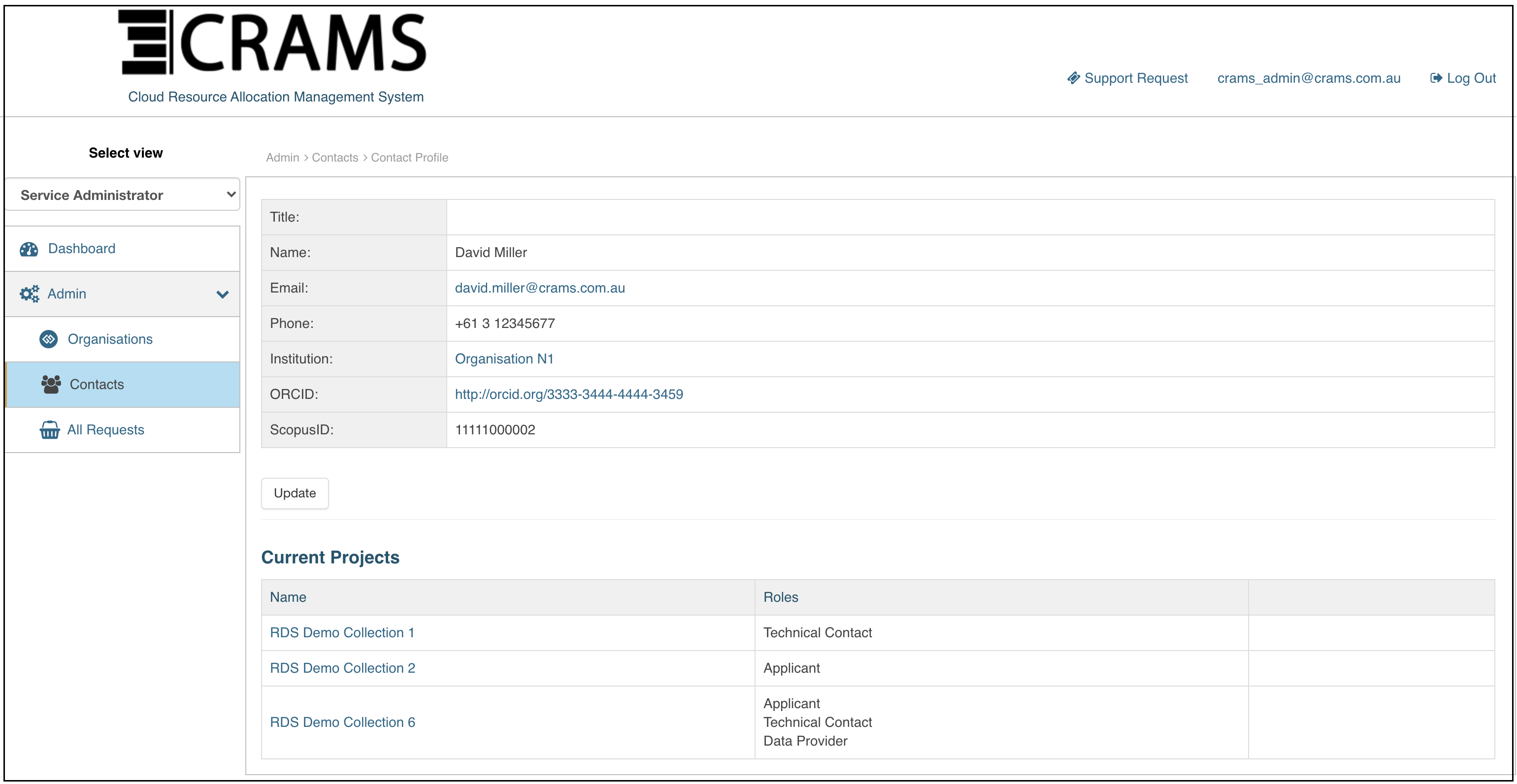
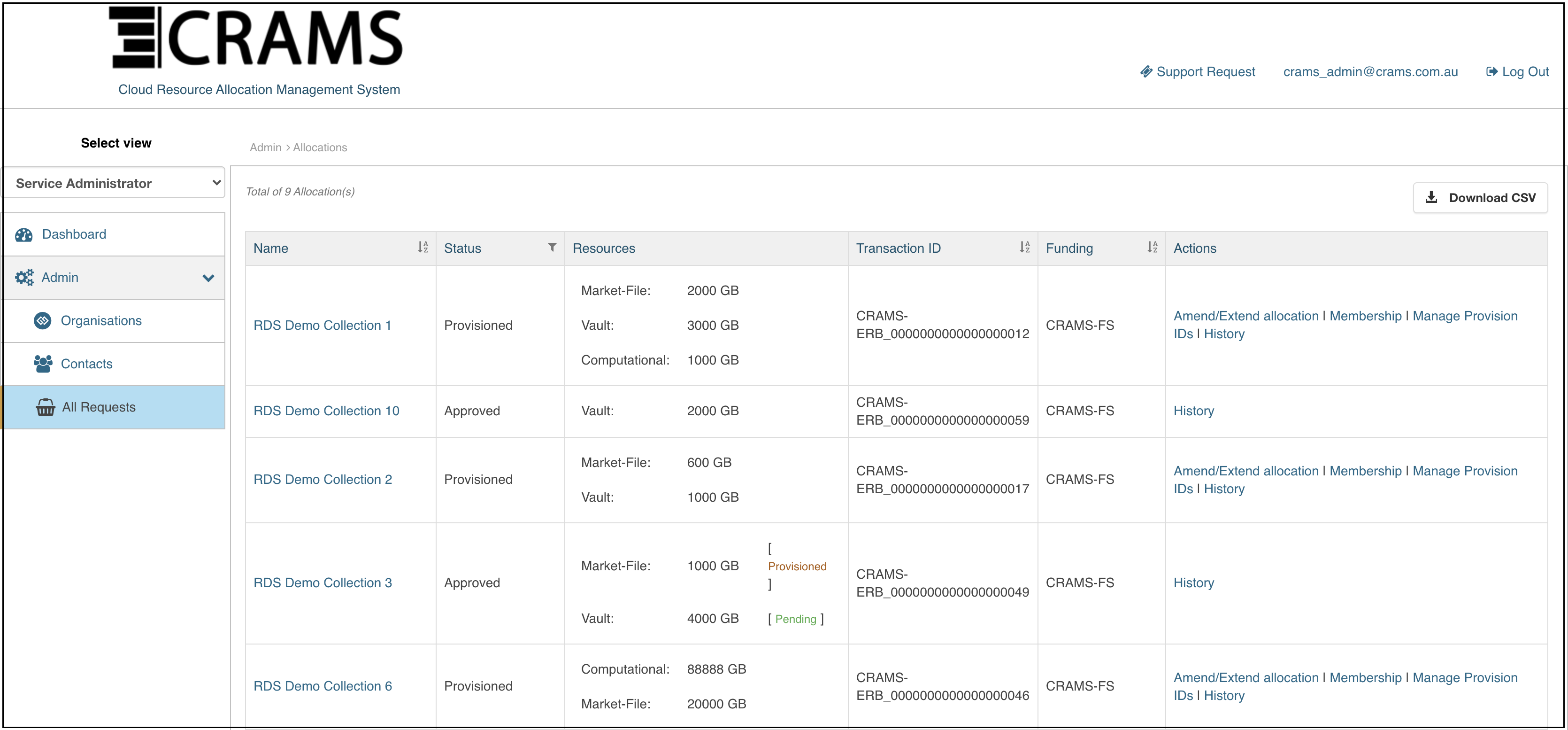
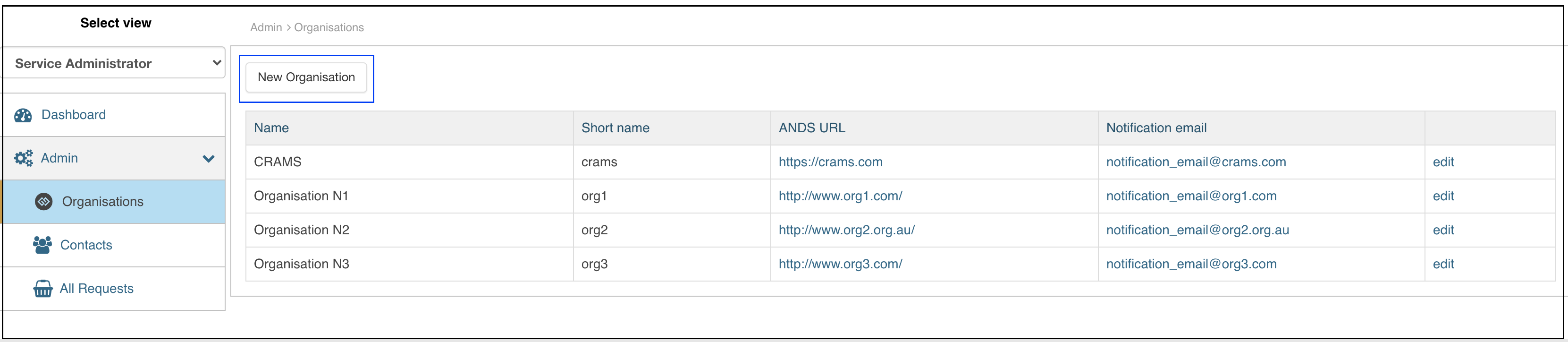
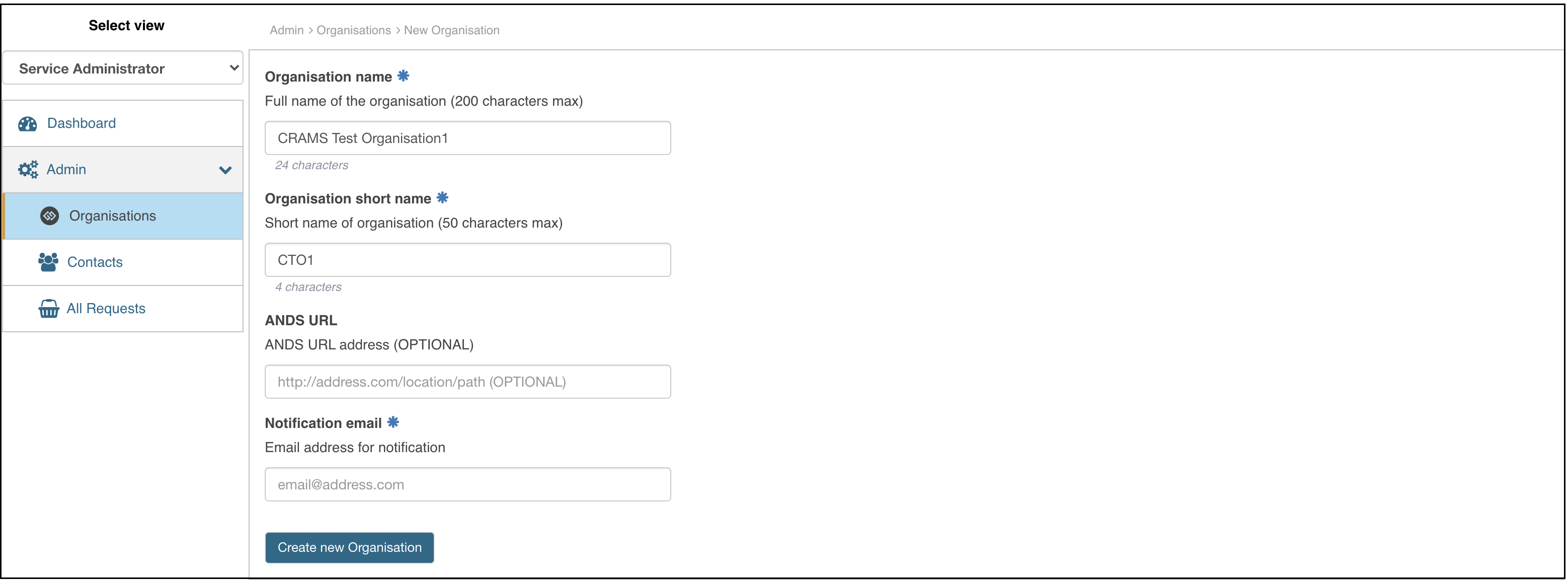
Service Administrator role allows to view all project requests, amend requests, extend requests, approve and provision. In addition to that the service adminitstrator can manage the project membership of any project, manage organizations and contacts.
View all Project Requests
View All Contacts
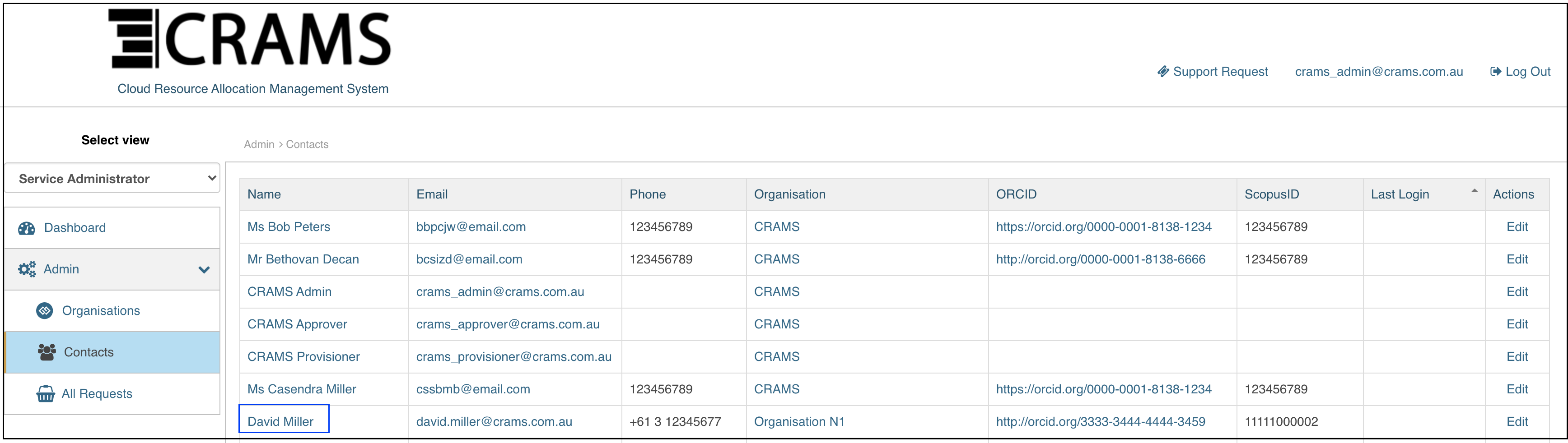
Update Contacts